


Metric Card
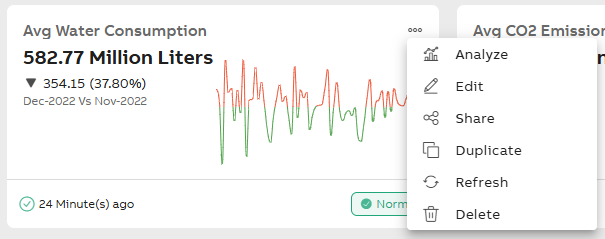
The individual metrics are displayed as cards on the Metrics List screen.
Metric Card
The following information and action buttons are available on the metric card:
| Fields | Description |
|---|---|
|
Metric Name |
Displays the name of the metric defined under name and description. |
|
Value |
Displays the Latest aggregated metric value with user decided display settings. |
|
Trend |
Displays trend for aggregated metric. |
|
Status |
Displays the status of an aggregated metric, categorized as normal, warning, or critical. |
|
View more/Ellipse icon |
The following actions are available on the more actions menu:
|
Click the metric card displays the Metric Details screen. For more information, refer to Metrics Details.
-
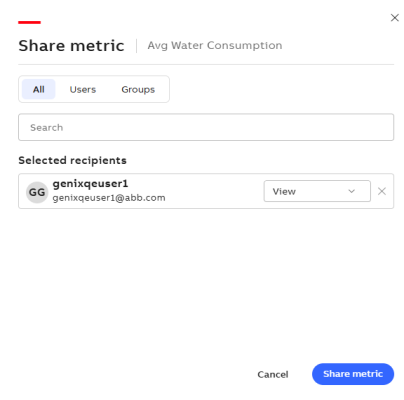
Share metric pop-up window appears that enables you to assign permissions to the metric.
-
All: Grant access permissions to all users.
-
Users: Grant access permissions to an individual user.
-
Groups: Grants access permissions to a group.
-
Search: Enables you to search for specific recipients.
-
Select the recipient.
-
Click + Add to display the selected recipient in the list.
-
-
Select a permission for the recipients from the dropdown list, such as View or Edit.
-
View: Grant view access permission to recipients.
-
Edit: Grant edit access permission to recipients.
-
-
Click Share metric.
Share metric