


Category Management
Metrics can be organized into user-defined categories, with each metric assigned to a parent category. A category may contain multiple subcategories or none at all to enhance metric organization. You can create as many unique categories as you wish in the Genix Metrics Hub, but duplicate category names are not permitted. Only the user who created a category or subcategory can edit name or delete it.
Category and Sub category can be created using either of the following ways:
-
Create a category and sub category in the Name & Description step during the creation of the metric
-
Create a category and sub category in Metric Catalog
Create category
-
Click + Add category.
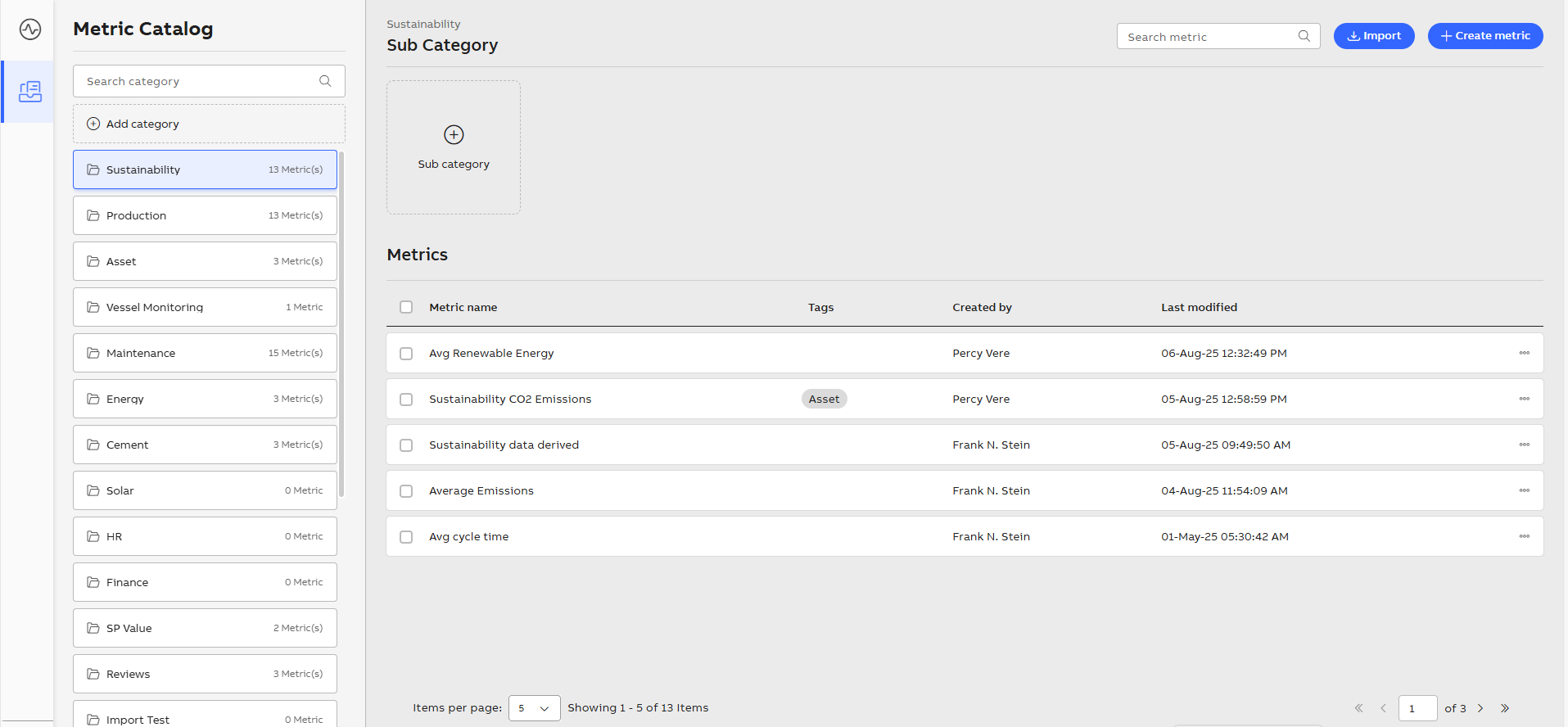 Add Category
 -
Enter category name.

Category Name
-
Click Enter.
-
Click to edit category name.
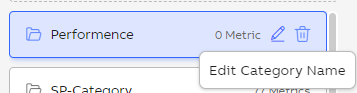
Edit Category Name
-
Click to delete category name.

Delete Category
Only users who created a category or sub-category can edit or delete it. These options are not visible to other users.
Create Sub category
-
Click the category.

Create Sub Category
-
Click + Sub category.
-
Enter Sub category name.
-
Create category
Enter the category name in the Metric category field and click + Add <Metric category name>. For more information, see Name & Description.

Metric Category
Create Sub category
Enter the sub category name in the Metric Sub category field and click + Add <Metric Sub category name>. For more information, see Name & Description.
If the category is already added in the Metric category field, the same category name will not be able to add it again. You can select it from the dropdown. You can establish sub categories in the same manner.