


Variables
The Variables feature within Genix Visualization Hub gives you the flexibility to incorporate dynamic elements into your dashboard, enabling customization and adaptability. It allows you to define variables based on different parameters such as Data Source, Expressions, or direct data input.
Perform the following procedure to create a new Variable or to search an existing Variable:
-
On the left menu bar, click Genix Visualization Hub > Create Dashboard.
-
Click Ellipsis icon present beside +Add Widget.
-
Select Variables from the options provided.
The system shows the Variables pop-up window, displaying the pre-defined variables if they are already set.
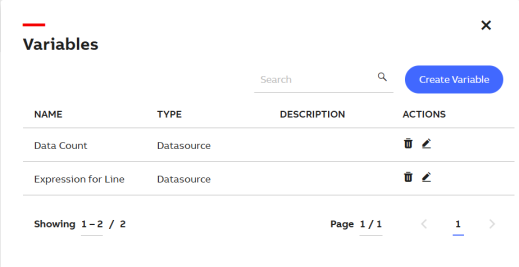
Pre-defined Variable List
-
To find a Variable from the list, type the Variable name in the search box and click Search icon.
-
To add a new Variable, click Create Variable.

Creating a Variable using Data Source
-
Enter the following details:
Fields
Description
Name Assign a name to the variable for identification purposes. Type Click the dropdown menu and select the parameter type for creating the Variable. Select one the following parameter type:
-
Data Source: For integrating with external data sources.
-
Expression: To generate values based on expressions.
-
Data: Direct input of data values.
Description Enter a brief description about the parameter (Data Source, Expression, Data) type's purpose or usage. Endpoint Enter the endpoint URL for the Data Source.
This field is not applicable for parameter type - Expression and Data.
Select Path Select the specific path within the Data Source.
This field is not applicable for parameter type - Expression and Data.
Select Request type Enter the type of API request (GET, POST, and so on) for the Data Source. -
If the selected Type is Expression, then you need to define the expression in the provided box to generate variable values.
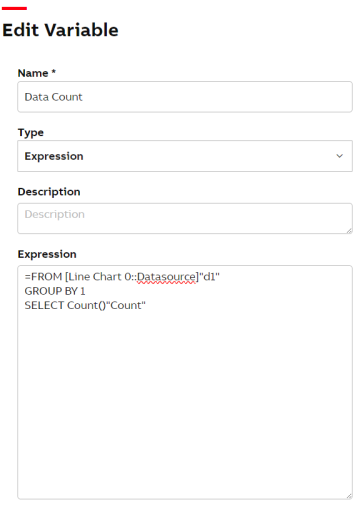
Creating a Variable using Expression
For more information about how to create an expression, see Appendix.
-
If the selected Type is Data, then you need to enter the required data directly in the provided box.
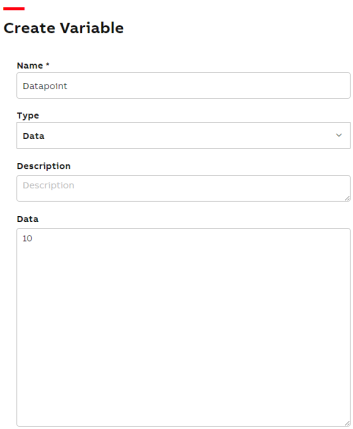
Creating a Variable using Data
-
-
Click Preview to view the added changes.
-
After all the necessary fields are filled according to the selected type, click Create to generate the variable.