


Link
The Link feature provides a quick-view option that allows you to navigate from a widget to another dashboard or a data-driven widget template.
Link to Another Dashboard
Use this option to link a widget to another dashboard. Configure this option in the Dashboard tab.
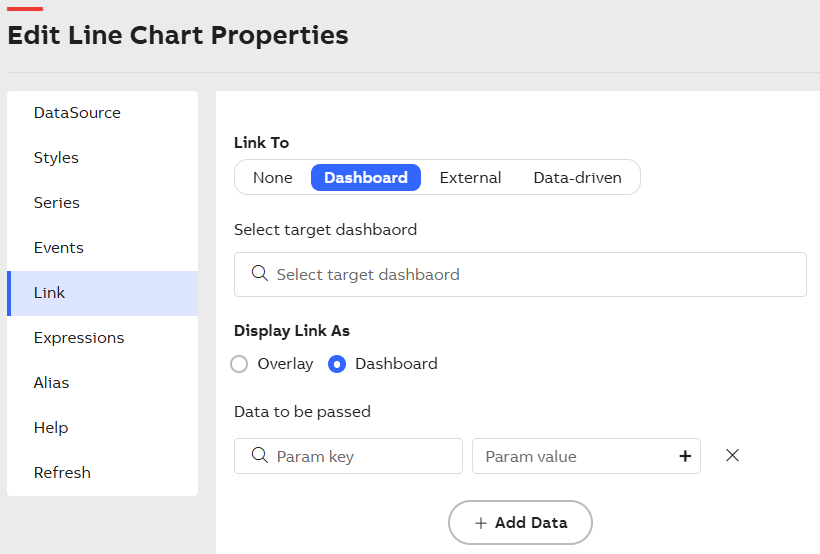
Links Tab - Dashboard
Configuration Options
The following configuration options are available on the Dashboard tab:
|
Option |
Description |
| Select target dashboard |
Select a dashboard from the dropdown list to link it with the widget. The list displays all dashboards saved in the application. After configuration, clicking the widget opens the selected dashboard. |
|
Display Link As |
Enable any one of the radio buttons to define how the linked dashboard is displayed.
|
| Data to be Passed |
The attributes that are passed as data are used to drill to functionality for the given links. In the Param Value field, you can either manually enter the value or click the + icon to generate the Parameter Value Configuration pop-up and select the value. For more information, see Variable Usage. |
Link template with Data-Driven Model
Use this option to link a widget to another widget template based on a data-driven model. Configure this option in the Data-driven tab.
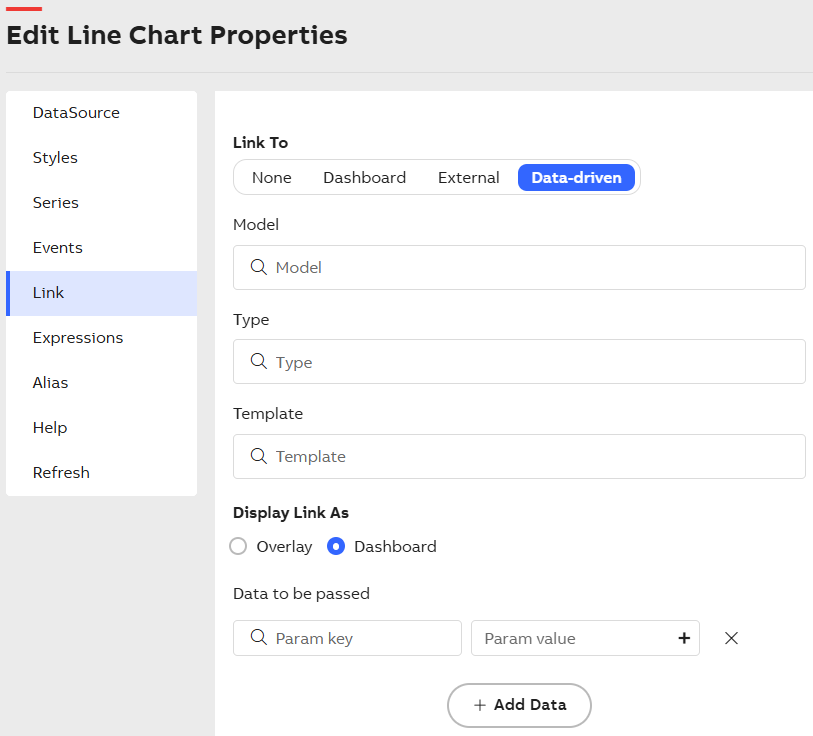
Links Tab - Data-Driven
Configuration Options
The following configuration options are available on the Data-driven tab:
|
Option |
Description |
|
Model |
Select the model from the dropdown. |
|
Type |
Select the type from the dropdown. |
|
Template |
Select the template to associate with the widget. When you click the widget, the selected template opens. |
|
Display Link As |
Enable any one of the radio buttons to define how the linked dashboard is displayed.
|
| Data to be Passed |
The attributes that are passed as data are used to drill to functionality for the given links. In the Param Value field, you can either manually enter the value or click the + icon to generate the Parameter Value Configuration pop-up and select the value. For more information, see Variable Usage. |