


Events
Events tab provides you with flexibility and convenience to establish inter-widget communication within a dashboard.
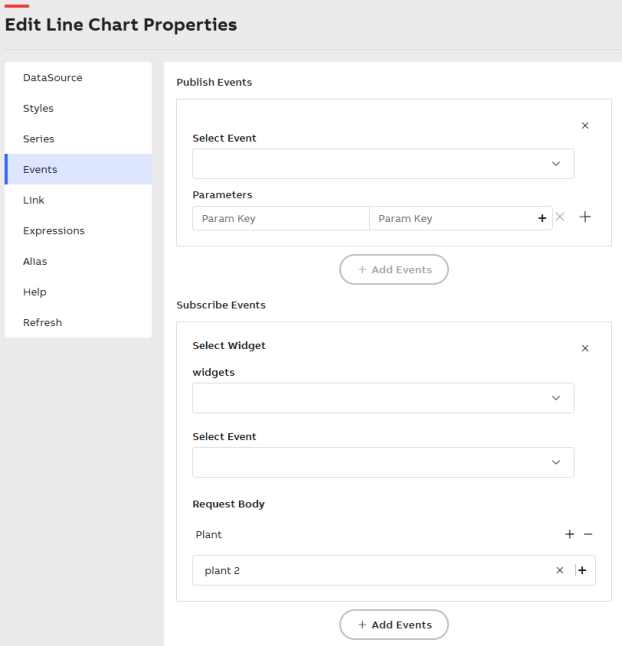
Events
There are two types of Events properties : Publish Events and Subscribe Events.
Publish Events
The Publish Events option is used when the current widget needs to publish events/parameters to other widgets in the dashboard.
To publish Events
-
Click +Add Events to add an environment, or click X to remove an event.
-
Select an event from the Select Event dropdown list.
An option under Event dropdown list called onNodeSelected is introduced in Tree widget for multiselect feature. With this option, you can select node(s) code and use the events parameters for another dependent widget.
-
Under Parameters of an event, click + icon to add a parameter. There can be multiple parameters for an event that can be published.
Click X icon to remove a parameter.
-
In the Paramkey field, click + icon. The Parameter Value Configuration pop-up is displayed.
-
Select the required parameter and click Apply.
For more information, see Variable Usage.
Subscribe Events
The Subscribe Events option enables a widget to receive values for configured request parameters from widgets that publish events.
The request parameters are populated based on the Select Path defined in the Data Source property.
To subscribe the events
-
Click + Add Events to activate event subscription, or click X to remove an event.
-
Select a published widget from the Select Widget dropdown list.
-
Select a published event from the Select Event dropdown list.
-
Define the following values:
-
FromDate: Manually enter the value or click the + icon to open the Parameter Value Configuration pop-up and select the date.
-
ToDate: Manually enter the value or click the + icon to open the Parameter Value Configuration pop-up and select the date.
-
Interval Seconds: Manually enter the value or click the + icon to open the Parameter Value Configuration pop-up and select the value.
For more information, see Variable Usage.
-